Automating ARK Server Maintenance: A Unified Bash Pipeline for SteamCMD Updates, RCON Saves, and Systemd Recycling
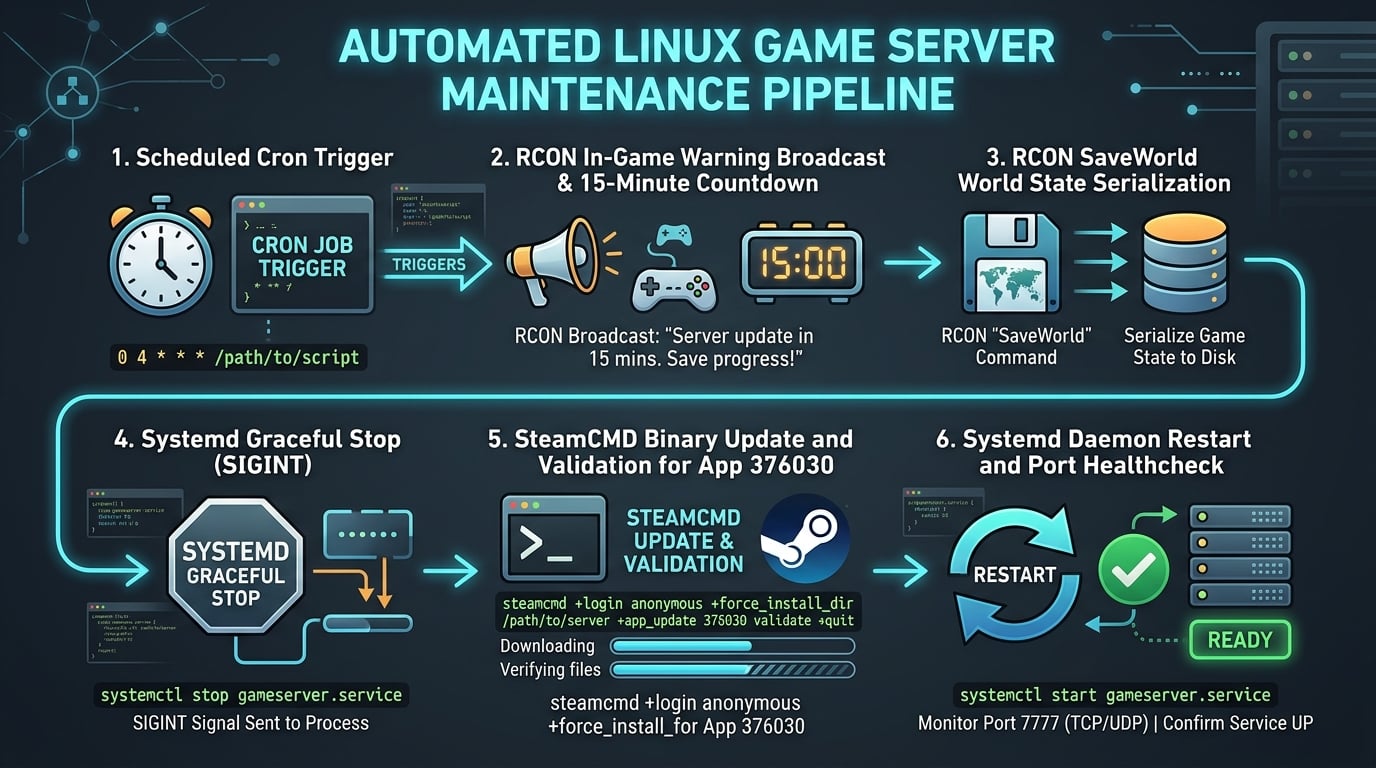
Managing an ARK: Survival Evolved dedicated server on Linux involves regular updates, backups, restarts, and performance checks. Performing these tasks manually takes time and can interrupt gameplay if the server shuts down without saving player progress. A Bash maintenance script can automate these operations using SteamCMD, RCON, and systemd. This approach helps administrators schedule updates, protect saved game data, and reduce repetitive maintenance work.
Why Automate ARK Server Maintenance?
ARK servers require regular maintenance to remain compatible with game updates and maintain stable performance. An unexpected restart may cause players to lose unsaved progress, while outdated server files can create connection problems. Automated maintenance helps administrators:
• Notify players before scheduled downtime.
• Save the Game World Before Restarting.
• Stop the ARK Server with Systemd
• Update game files using SteamCMD.
• Restart the server and check its status.
• Record maintenance activity in log files.
1. Prepare the Linux Server
Before creating an automation script, ensure the following components are installed:
• A working ARK: Survival Evolved dedicated server.
• SteamCMD for downloading and updating server files.
• A command-line RCON client for sending server commands.
• systemd for managing the server process.
• Bash and cron for automation and scheduling. The ARK server should already be configured to run as a systemd service.
2. Send Player Warnings Using RCON
RCON (Remote Console) allows administrators to send commands to a running ARK server without joining the game. Before maintenance, send a warning so players have time to finish their activities. For example: rcon-cli -a 127.0.0.1:27020
-p "$RCON_PASSWORD"
"Broadcast Server maintenance in 5 minutes" The RCON password should be stored securely rather than written directly into a publicly accessible script. Administrators can schedule several warnings before shutting down the server.
3. Save the Game World Before Restarting
Saving the game world is one of the most important steps in ARK server maintenance. Use the following RCON command: rcon-cli -a 127.0.0.1:27020
-p "$RCON_PASSWORD" "SaveWorld" This requests that ARK save its current world state. Allow sufficient time for the save operation to finish before stopping the server. The required time depends on the world size, storage performance, and server workload. Maintain separate backups of saved game files in case an update or restart causes problems.
4. Stop the ARK Server with Systemd
Once the world has been saved, stop the server through systemd: sudo systemctl stop arkserver.service The service should be configured to allow a graceful shutdown.
For example, the systemd service can include: KillSignal=SIGINT TimeoutStopSec=180s Restart=on-failure Test these settings with your ARK installation before using them in scheduled maintenance. Avoid forcing the server to terminate with kill -9 during normal operations because it prevents the application from completing its shutdown procedure.
5. Update ARK Server Files Using SteamCMD
SteamCMD is Valve's command-line utility for installing and updating dedicated game servers. For ARK:
Survival Evolved, the dedicated server application ID is 376030. Run the update command:
steamcmd
+force_install_dir /home/steam/arkserver
+login anonymous
+app_update 376030 validate
+quit The validate option checks installed game files and downloads missing or changed files. Run SteamCMD using the appropriate non-root server account. Before restarting, check the command output for errors. Do not assume the update succeeded solely because the command finished.
6. Restart and Verify the Server
After completing the update, restart the ARK service: sudo systemctl start arkserver.service Check whether the service is running: sudo systemctl status arkserver.service You can also inspect the configured UDP ports: sudo ss -lun ARK commonly uses UDP port 7777 for game traffic and UDP port 27015 for server queries, although configurations may differ. A running service and open ports do not guarantee that players can connect. Test an actual client connection before considering maintenance complete.
7. Schedule Maintenance Using Cron
Linux cron can execute maintenance scripts automatically at a scheduled time. Create your script at: /opt/scripts/ark-maintenance.sh After testing it, make the file executable: sudo chmod +x /opt/scripts/ark-maintenance.sh Open the root crontab: sudo crontab -e Add the following entry to run maintenance daily at 4:30 AM in the server's configured time zone: 30 4 * * * /bin/bash /opt/scripts/ark-maintenance.sh >> /var/log/ark-maintenance.log 2>&1 The script should handle player notifications, world saving, server shutdown, SteamCMD updates, and startup verification in the correct order. Use a locking mechanism to prevent overlapping maintenance runs, and configure log rotation to control log file growth.
Common ARK Maintenance Problems
· RCON connection refused: Check whether RCON is enabled, verify the configured port and credentials, and confirm the server is running.
· SteamCMD update fails: Check available disk space, file permissions, and network connectivity. Review the SteamCMD output before attempting another update.
· Server fails to restart: Use the following command to inspect service logs:
· sudo journalctl -u arkserver.service -n 100
· Server starts but players cannot connect: Verify firewall rules, UDP port configuration, game version compatibility, and server startup logs.
Final Thoughts
Automating ARK server maintenance with Bash reduces repetitive administration and makes scheduled updates easier to manage. A practical maintenance workflow should warn players, save the world, stop the service safely, update files through SteamCMD, and verify the server after restarting. Test the complete process manually before enabling cron. Keep regular backups and review maintenance logs so problems can be identified before they affect players.
About the author
- Onlive Server is a leading server hosting company that provides the cheapest Dedicated Server Hosting, Cheap Cloud VPS Hosting, VPS Server Hosting, and Shared Server Hosting Plans at a very affordable price. Our highly experienced technical support team has been providing the best possible web hosting services since 2016. The company is committed to providing the best-in-class Dedicated Server Hosting, Cheap VPS Server Hosting, and Web Hosting services. Onlive Server is consistently improving the quality of its services, which results in numerous loyal customers. We have been cooperating with you since the very foundation of the company.
Comments
Join the discussionNo comments yet. Be the first to comment.